.png)
Importing Test Cases
It requires proper permissions listed below for Jira user whom is going to do test case import:
-
Jira ‘Create Issues’ permission
-
Jira ‘Modify Reporter’ permission
-
TestRay ‘Manage Test Cases’ permission
-
TestRay ‘Manage Test Suites’ permission
It requires proper Jira configurations listed below:
-
For 'Company-managed' Jira project: issue type ‘Test Case’ is added in the project, please follow Jira documentation to set it properly.
-
For ‘Team-managed’ Jira project, please follow steps in the documentation: Team-Managed Project Configuration
-
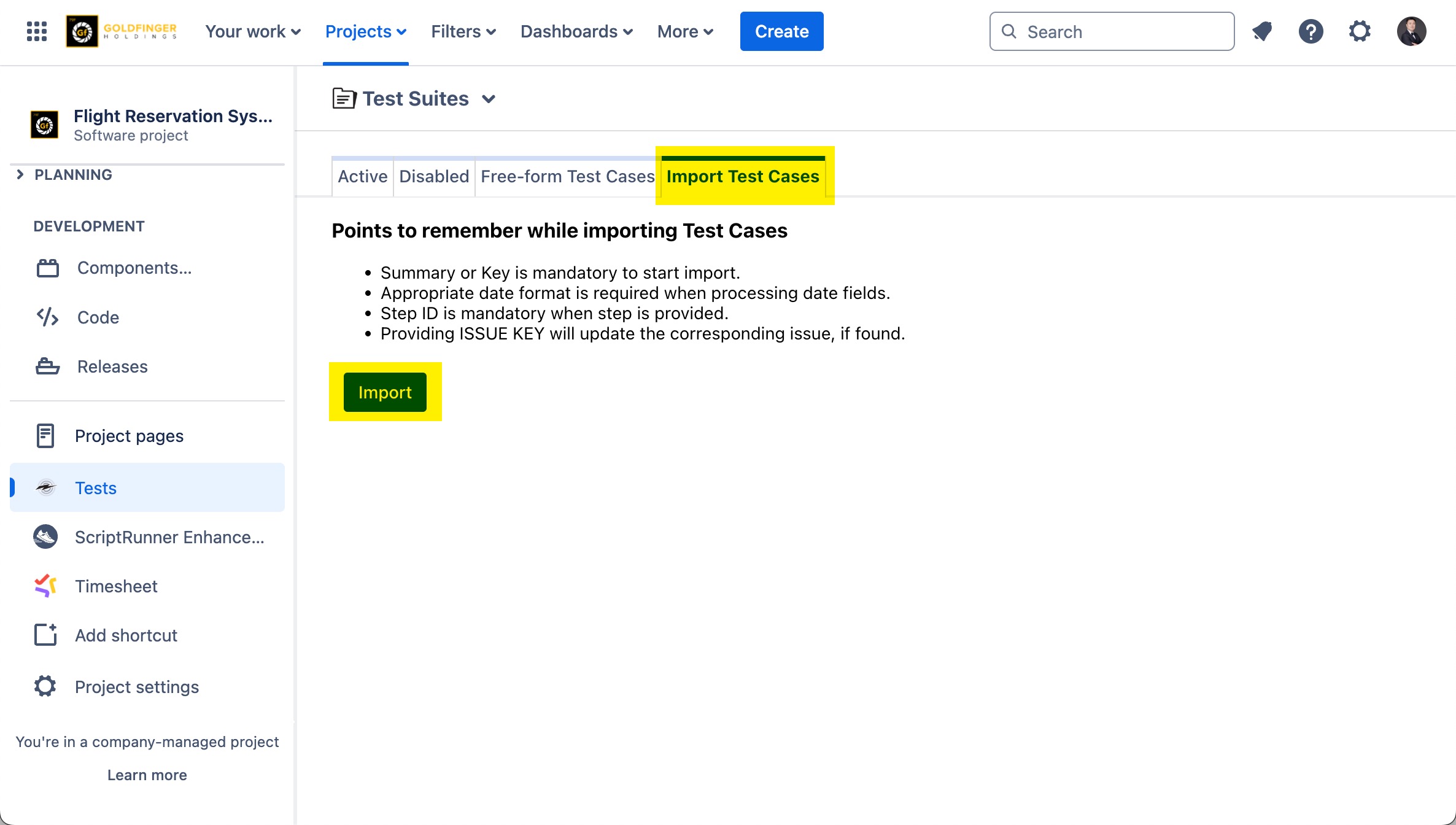
Go to the “Test Suites” page.
-
Click the “Import Test Cases” tab.
-
Click “Import”, the TestRay Importer page appears.
-
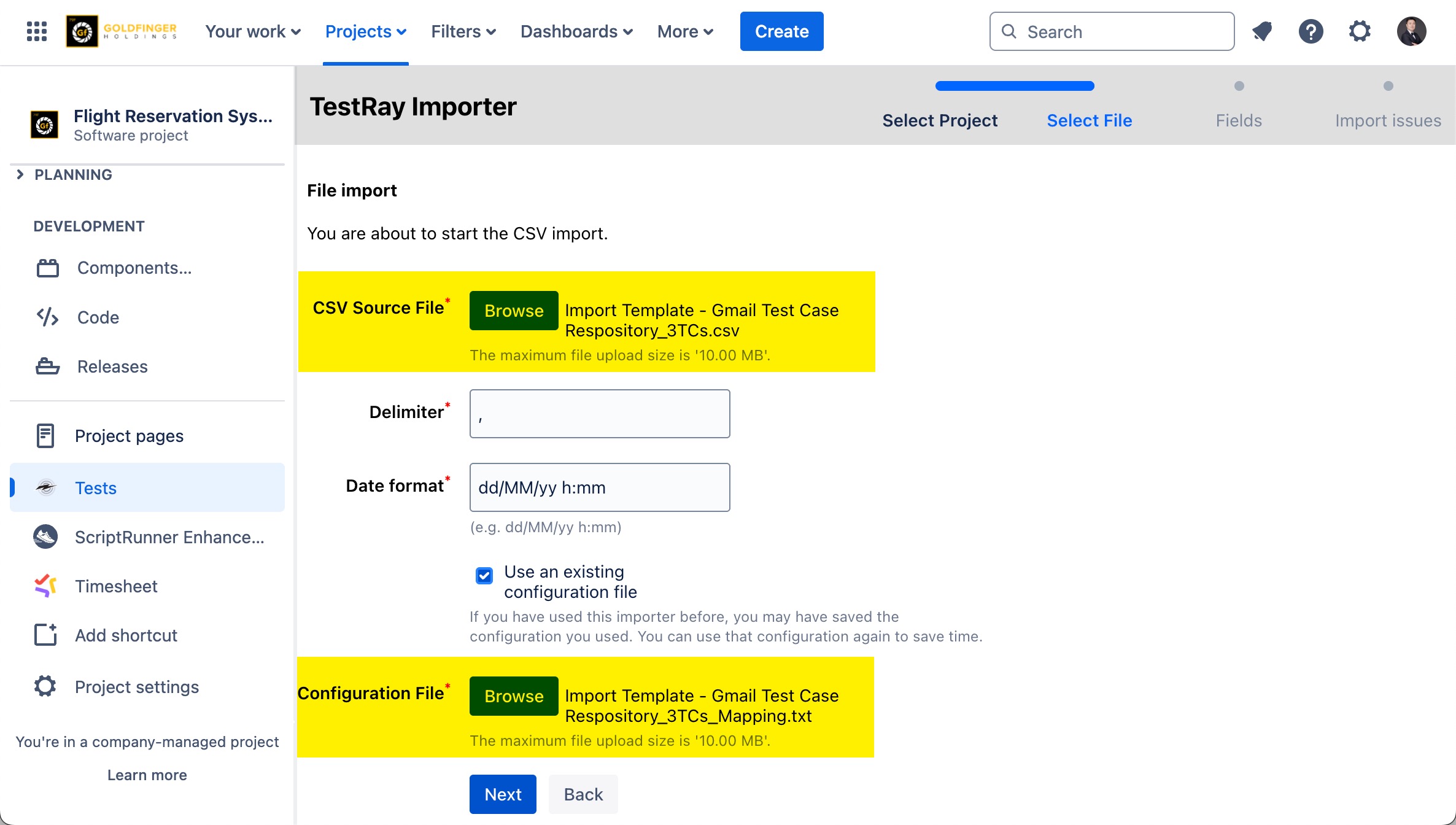
Browse to a valid test case import file and browse to a field mapping file (if have).
Test case import file needs to follow both TestRay (TestRay fields) and Jira (Jira fields) import format, below are test case import template and a mapping file.
-
Test case import template: Import Template - Gmail Test Case Respository_3TCs.csv
-
Field mapping file (it will be generated after any success import): Import Template - Gmail Test Case Respository_3TCs_Mapping.txt
-
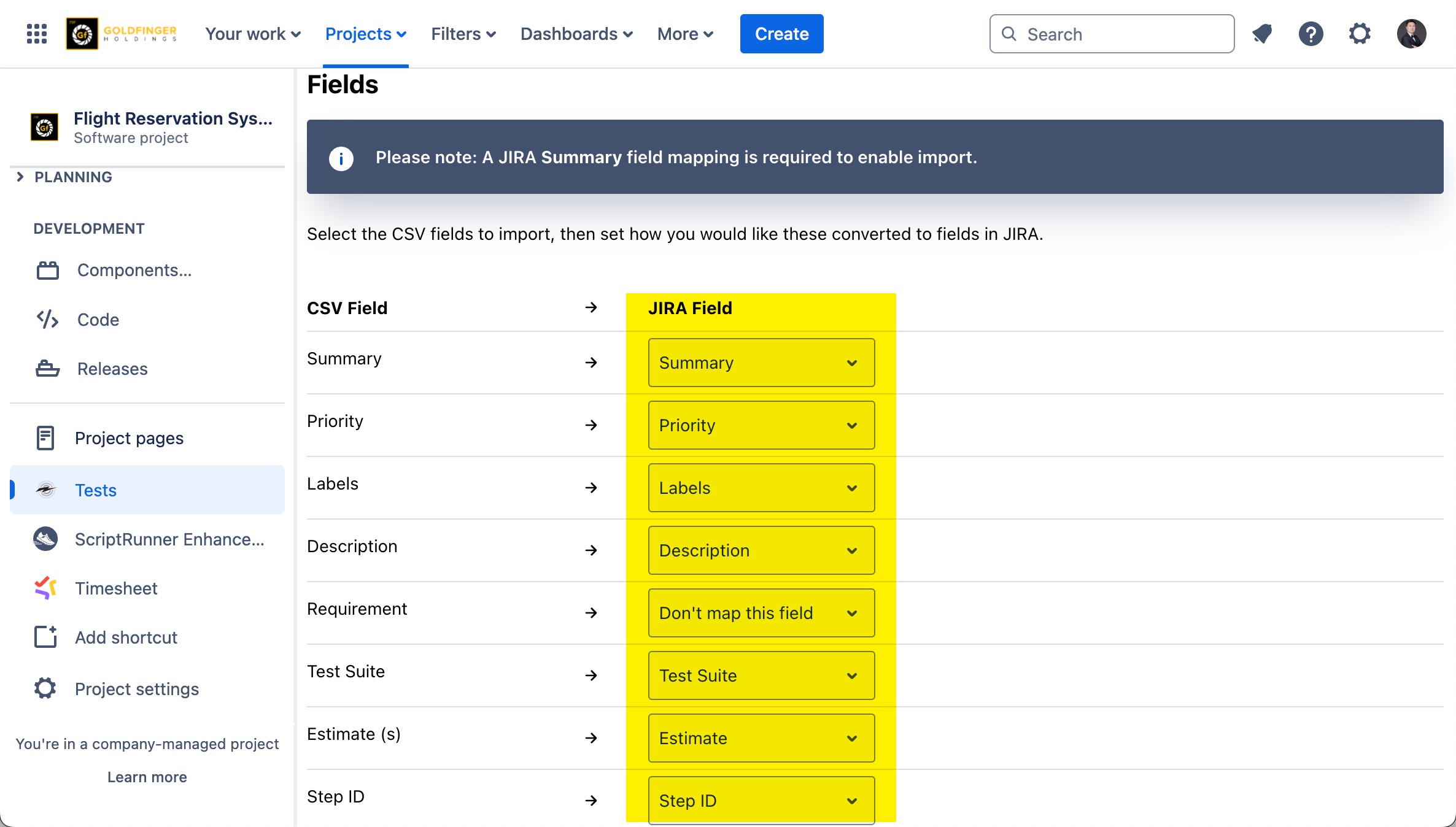
Select the appropriate value in Jira field column to complete field mapping.
-
Click “Import” button to complete import process.